RankedShelf

USB-C docks & hubs · checked against maker specs

Pick a dock or hub that works with your laptop.

Your laptop decides how many screens, how much charging and how fast a dock can be. We line up each maker's own numbers with the conditions that come with them, so you can see what fits before you buy.

Specs from manufacturer pages, last checked Oct 12, 2026. No hands-on testing, no scores. We earn nothing from the store links.

Three things decide the fit

  1. Your laptop's port

    Thunderbolt 5, Thunderbolt 4 / USB4, or USB-C. It sets the speed and the display support a dock can reach.

    Which port do I need? →
  2. How many screens

    Your laptop's chip or graphics set a limit no Thunderbolt or USB-C dock can raise. MacBooks with base chips are the usual surprise. (DisplayLink docks, which drive extra screens through a software driver, are a different kind of product; none is covered here.)

    Mac limits by chip →
  3. Power for your laptop

    Compare what the dock sends to the laptop with the charger your laptop came with.

    Charging, explained →

Start from your setup

What are you connecting?

Picks for common setups

A starting point for four situations

Each pick says who it suits and what you give up. These are our conclusions from the makers' specs, not test results, and not a ranking.

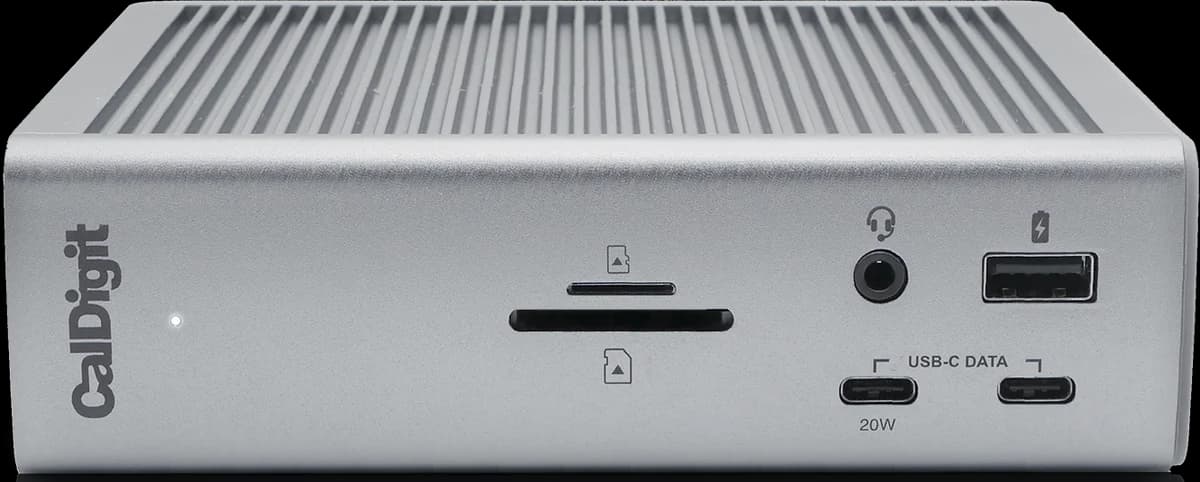
  • CalDigit TS4 dock, front view: SD and microSD slots, audio jack, two USB-C ports and a USB-A port

    A desk with two monitors, on Thunderbolt 4

    CalDigit TS4 Thunderbolt 4 Dock

    DockThunderbolt 4
    Why it fits Our take
    Lots of ports, 2.5Gb Ethernet and up to 98W for the laptop, with two monitors on laptops that support them.
    The trade-off
    Through it, base M1, M2 and M3 Macs get one external display (CalDigit's exception: the M3 MacBook Air gets two with its lid closed), and it has no HDMI port.

    Displays

    Up to 2maker's maximum

    Base M1/M2/M3 Macs: 1 (M3 MacBook Air: 2 with the lid closed)

    Full detail and source

    Up to 2: one 8K or two 6K@60Hz. Base M1/M2/M3 Macs: 1 (M3 MacBook Air: 2 with the lid closed)

    caldigit.com
  • A laptop that moves between desks

    OWC Thunderbolt Go Dock

    DockThunderbolt 4
    Why it fits Our take
    The power supply is built in, so there is no adapter brick to pack, and it charges a laptop at up to 90W.
    The trade-off
    OWC's own table gives base M1 and M2 Macs one display and has no row for M3 or later Macs, so check with OWC before counting on two screens from a newer Mac.

    Displays

    Up to 2maker's maximum

    OWC's table: base M1/M2 Macs get 1; M3 and later Macs aren't listed

    Full detail and source

    Up to 2: one 8K or up to two 4K, depending on the computer. OWC's table: base M1/M2 Macs get one display; M1/M2 Pro, Max and Ultra get two; M3 and later Macs aren't listed

    eshop.macsales.com
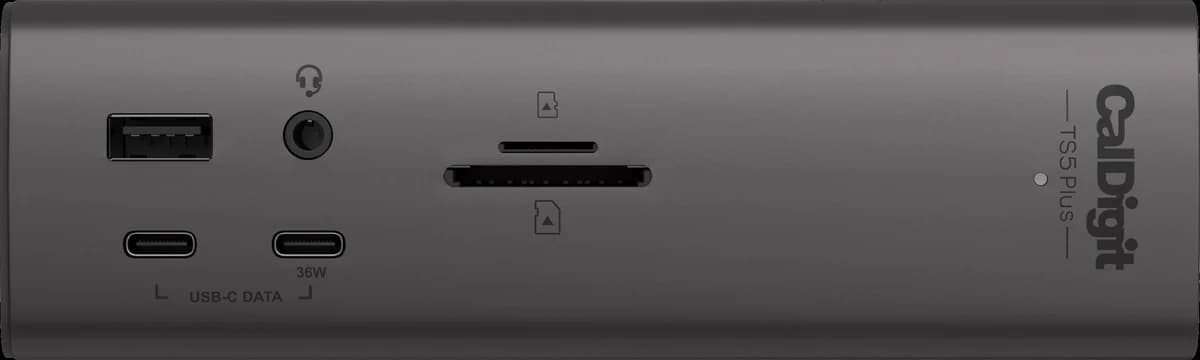
  • CalDigit TS5 Plus dock, front view: USB-A port, audio jack, SD and microSD slots and two USB-C ports

    Three or more screens from a Thunderbolt 5 laptop

    CalDigit TS5 Plus

    DockThunderbolt 5
    Why it fits Our take
    Three 4K 144Hz displays on M5 Pro, M5 Max or supported Thunderbolt 5 Windows PCs, four on M5 Max, plus 10Gb Ethernet and up to 140W for the laptop.
    The trade-off
    Those display counts need an M5 Pro or M5 Max MacBook Pro or a supported Thunderbolt 5 PC; other laptops run fewer.

    Displays

    Up to 4maker's maximum

    3 need an M5 Pro/Max or a supported Thunderbolt 5 Windows PC; 4 need an M5 Max

    Full detail and source

    Up to 4 (each 4K 144Hz, 5K 75Hz, 6K 60Hz or lower). 3x 4K 144Hz on M5 Pro, M5 Max or supported Thunderbolt 5 Windows PCs; 4x 4K 144Hz on M5 Max

    caldigit.com
  • A hub for the laptop bag

    Anker 555 USB-C Hub (8-in-1)

    HubUSB-C
    Why it fits Our take
    No power supply to carry: one HDMI port at up to 4K@60Hz, 10Gbps USB ports and gigabit Ethernet.
    The trade-off
    It drives one external display, and laptop charging needs your own USB-C charger plugged into it; up to 85W reaches the laptop.

    Displays

    1 displaymaker's maximum

    HDMI 2.0, up to 4K@60Hz

    Full detail and source

    1 (HDMI 2.0, up to 4K@60Hz)

    anker.com

Side by side

The Thunderbolt 5 docks

Same port, different limits. The display numbers depend on the laptop, so read the conditions, not just the maximum.

Open in the comparison
Price
Plugable Thunderbolt 5 Dock (TBT-UDT3)

$299.95 at Plugable (plugable.com), Oct 12, 2026

Anker Prime TB5 Docking Station (14-in-1)

$399.99 at Anker (anker.com), Oct 12, 2026

CalDigit TS5 Plus

$499.99 at CalDigit (caldigit.com), Oct 12, 2026

Displays
Plugable Thunderbolt 5 Dock (TBT-UDT3)

Up to 3maker's maximum

3 only on M5 Pro/Max Macs; Windows: 2; HDMI/DP monitors need adapters

Full detail and source

Mac: 3 on M5 Pro/Max; 2 on any M4, base M5 and earlier Pro/Max chips; base M3 2 with the lid closed; base M1/M2 1. Windows: 2 (up to 8K 120Hz on Thunderbolt 5, 4K 60Hz on 12th Gen+ Thunderbolt 4). HDMI/DP monitors need adapters

plugable.com
Anker Prime TB5 Docking Station (14-in-1)

Up to 3maker's maximum

Base M1/M2/M3 Macs: 1; M4 MacBooks can't run 3 over one Thunderbolt 5 connection

Full detail and source

Up to 3, depending on the laptop. Base M1/M2/M3 Macs: 1; M1/M2/M3 Pro/Max and all M4: 2; M4 MacBooks cannot run 3 over one Thunderbolt 5 connection

anker.com
CalDigit TS5 Plus

Up to 4maker's maximum

3 need an M5 Pro/Max or a supported Thunderbolt 5 Windows PC; 4 need an M5 Max

Full detail and source

Up to 4 (each 4K 144Hz, 5K 75Hz, 6K 60Hz or lower). 3x 4K 144Hz on M5 Pro, M5 Max or supported Thunderbolt 5 Windows PCs; 4x 4K 144Hz on M5 Max

caldigit.com
Laptop charging
Plugable Thunderbolt 5 Dock (TBT-UDT3)Up to 140W on USB PD 3.1 computers; up to 100W on PD 3.0
Anker Prime TB5 Docking Station (14-in-1)Up to 140W
CalDigit TS5 PlusUp to 140W
Facts checked
Plugable Thunderbolt 5 Dock (TBT-UDT3)Checked Oct 12, 2026 · plugable.com
Anker Prime TB5 Docking Station (14-in-1)Checked Oct 12, 2026 · anker.com
CalDigit TS5 PlusChecked Oct 12, 2026 · caldigit.com

Compatibility guides

Answers before products

Each guide answers its question first, from Apple's and the makers' own pages, then points to the products that fit.

How this site works

Where the information comes from, and what it isn't

Sources

Every spec comes from the maker's own product page and is stored with the sentence it came from. A script re-checks those sentences against the live page. Anything we have no such sentence for reads “Not verified”.

Judgement

We don't test products or give scores. Our conclusions are labeled “Our take”, and every pick names who it suits and its main limit. Reviews are drafted with AI and checked by script against the fact records; each one says whether a person has reviewed it.

Money

We have no affiliate agreements: store links are plain links and earn us nothing. If that changes, the disclosure page will say so first.